How to edit the navbar and footer links
A step by step for changing link labels like Pass, Files, Exchange and Postbox, in English and in DE, FR and IT, and then publishing to staging. Click any screenshot to see it full size. The red letters in each screenshot match the letters in the text.
Change a footer link
Open the Designer, make sure the language at the top says EN, and open any page (Home is fine).
Scroll down to the footer
Scroll the canvas to the bottom until you see the footer columns. The module links are under Modules 1.
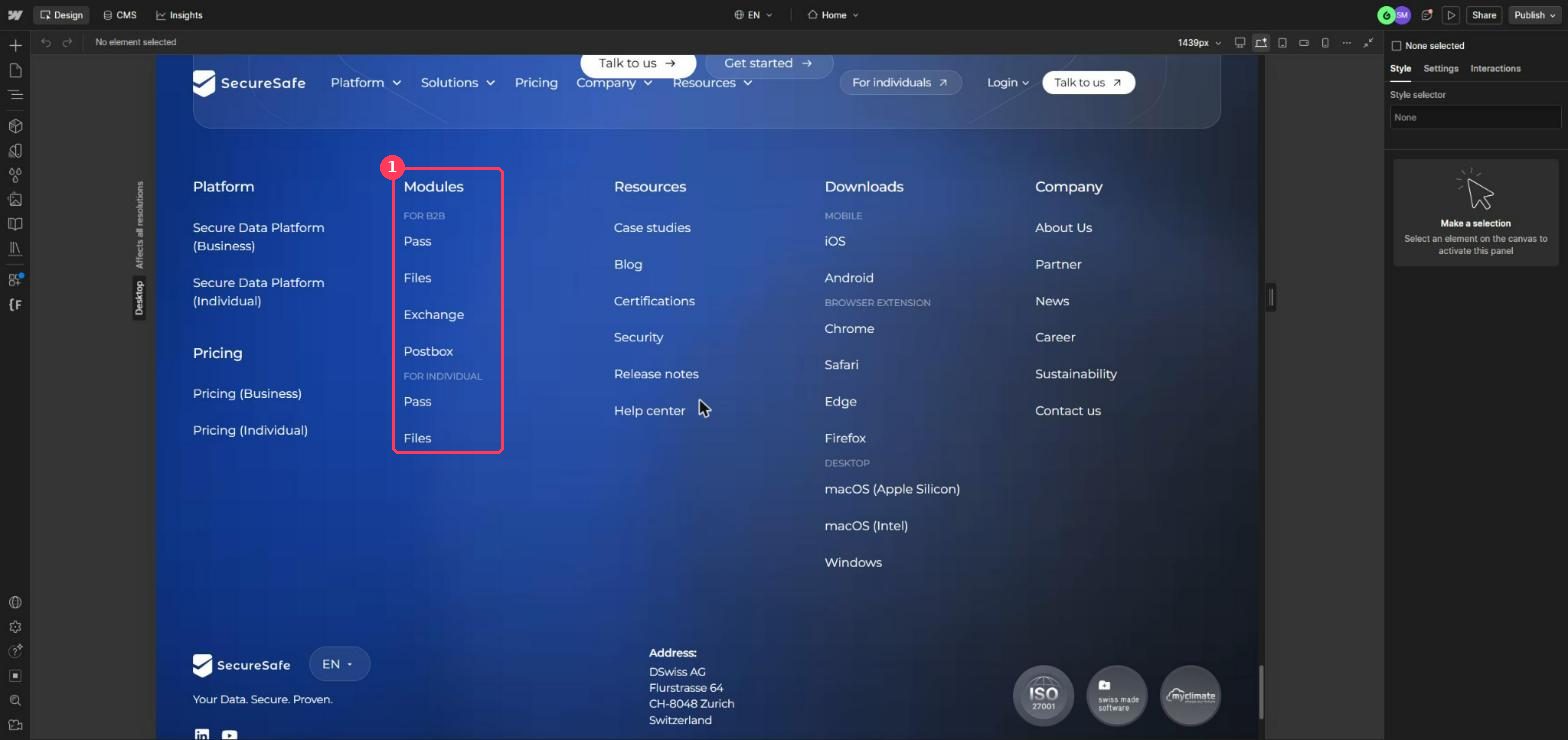
Double-click the link, then click it once
Double-click any link in the footer. That opens the footer for editing, and a green Footer badge appears at the top A. Then click the link you want to change one time B.
The right panel now shows a Text field with the current label C. The green bar at the bottom D just tells you the change will show on every page. That is expected.
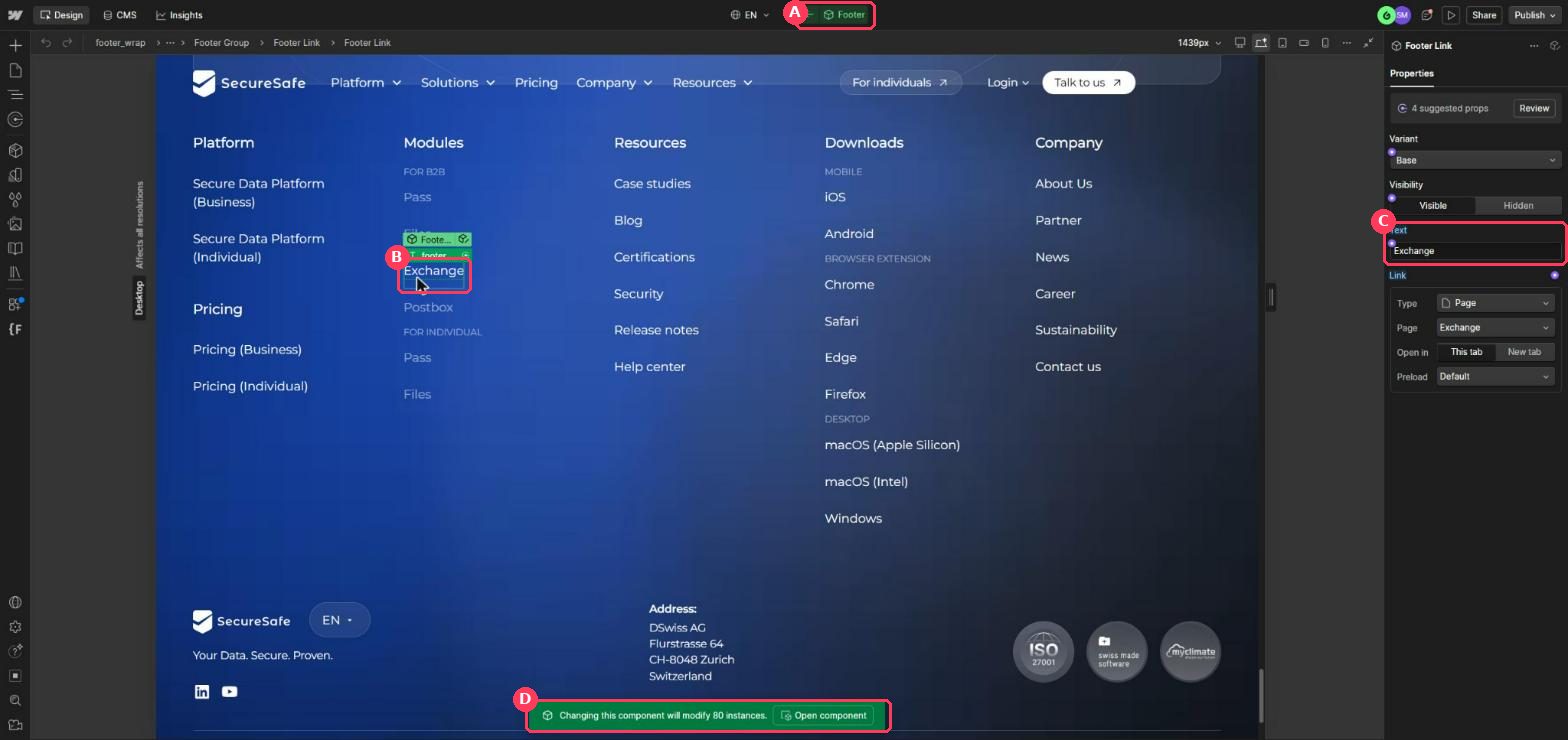
Type the new label
Click into the Text field C, select the old text, type the new one and press Enter. The canvas updates right away.
Leave the footer
Click the small arrow to the left of the green Footer badge A, or press Esc a couple of times. You are back on the normal page.
Change it in German, French or Italian
Each language keeps its own copy of the label, so you repeat Part 1 once per language.
Switch the language
Click
ENat the top of the Designer A and pick DE German, FR or IT from the list B.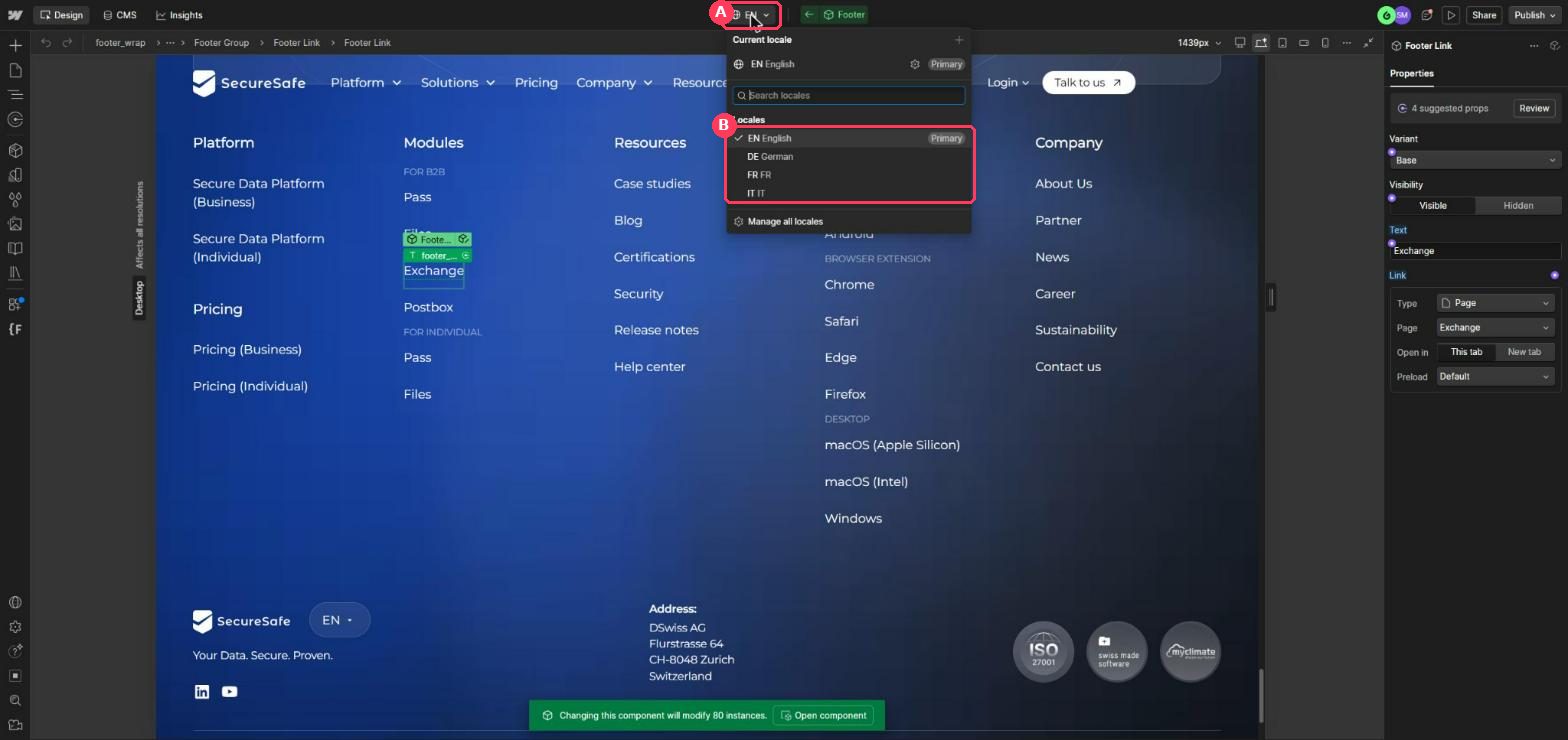
Edit the label the same way
The top now shows the language you picked A. Double-click the footer, click the link once, and change the Text field B. This only changes that one language.
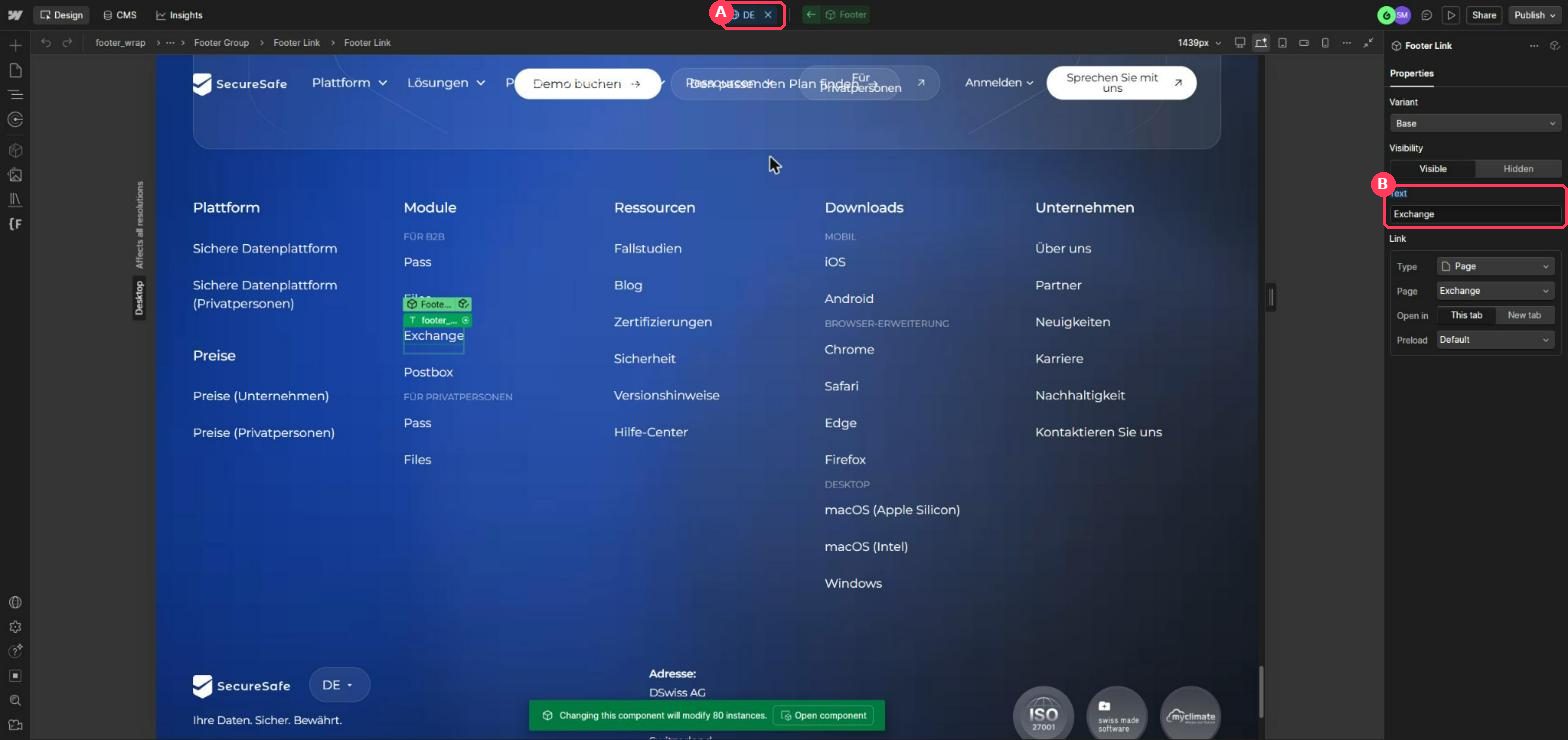
Go back to English
Click the small × next to the language at the top A to return to EN.
Change a link in a navbar dropdown
The links inside a dropdown (for example Pass, Files, Exchange and Postbox under Platform) are hidden until you open the menu in the Designer.
Open the navbar
Scroll back to the top and double-click Platform in the navbar. A green Navbar badge appears at the top A.
Show the dropdown menu
In the grey path bar just under the toolbar, click
navbar_menu-dropdown. Then open the Settings tab in the right panel B and set Menu to Show C. The menu now stays open on the canvas D.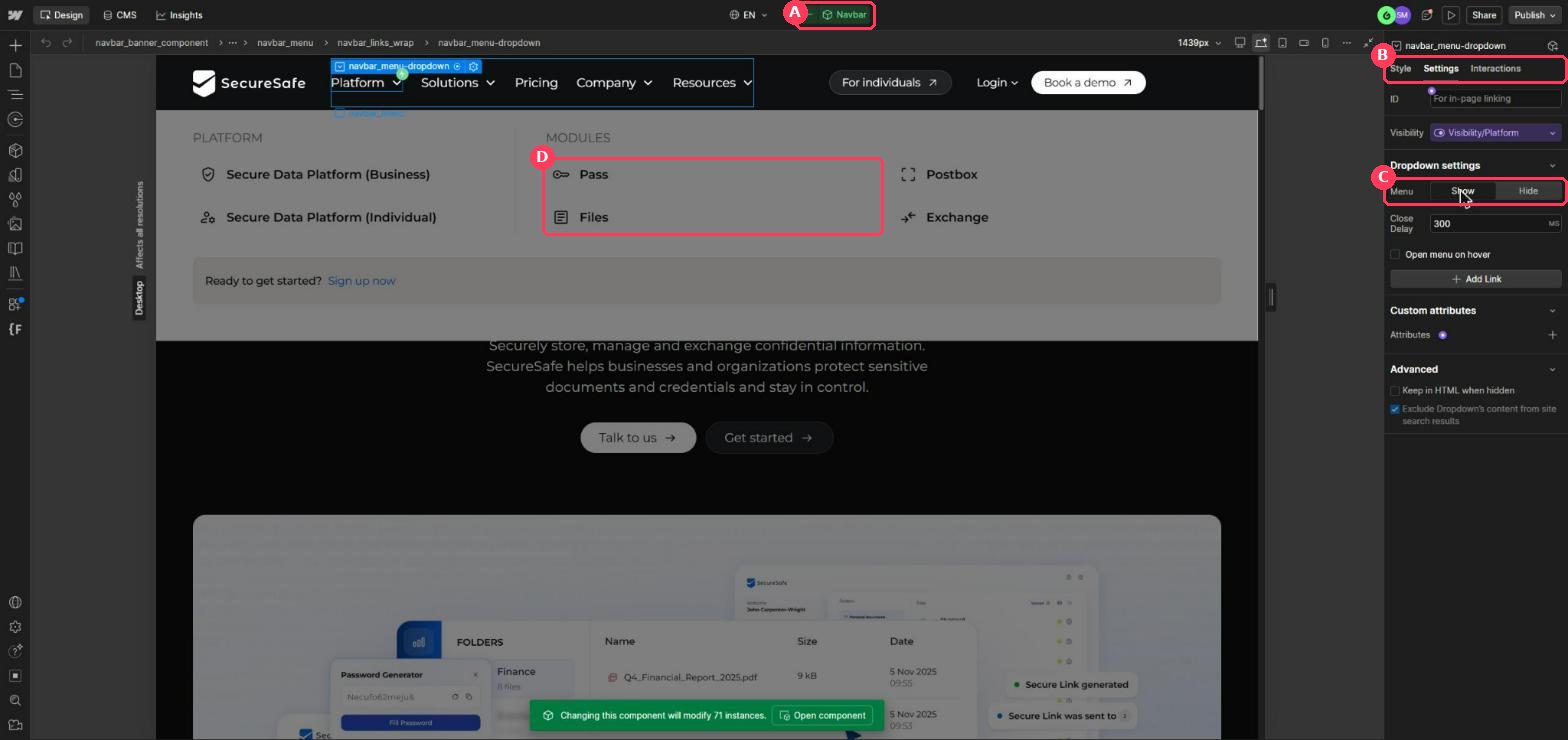
Double-click the link, then click it once
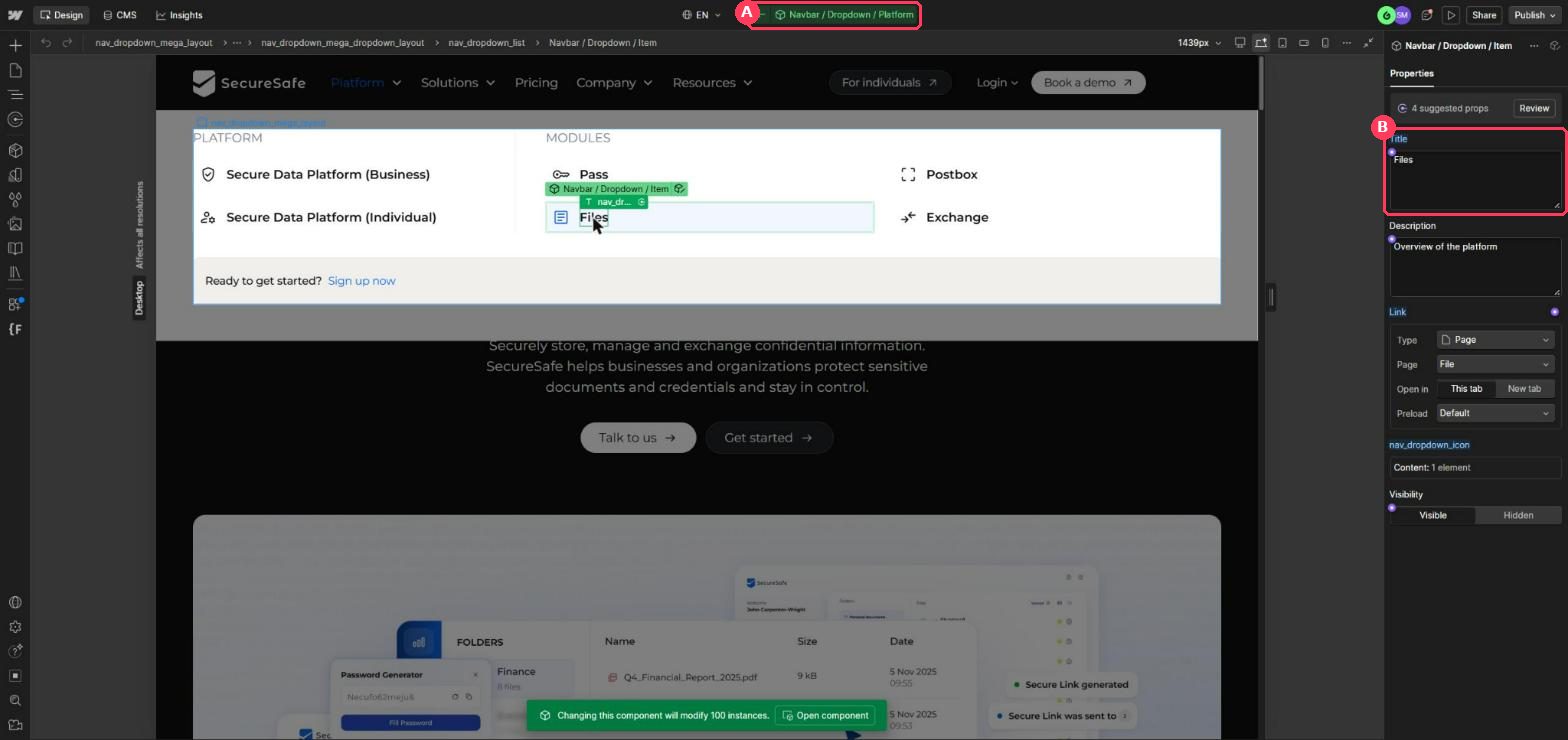
Double-click the link you want, for example Files. The badge at the top changes to Navbar / Dropdown / Platform A. Click the link once and the right panel shows its Title and Description B. Change the Title and press Enter.
Close the menu again
Click the arrow next to the badge to step back out, click
navbar_menu-dropdownin the path bar again, and set Menu back to Hide. This only affects how the Designer canvas looks, but it keeps things tidy.
Publish to staging only
Pick staging and publish
Click Publish in the top right. Tick
staging-securesafe.webflow.ioA, make suresecuresafe.comis not ticked B, then click Publish to selected domains C.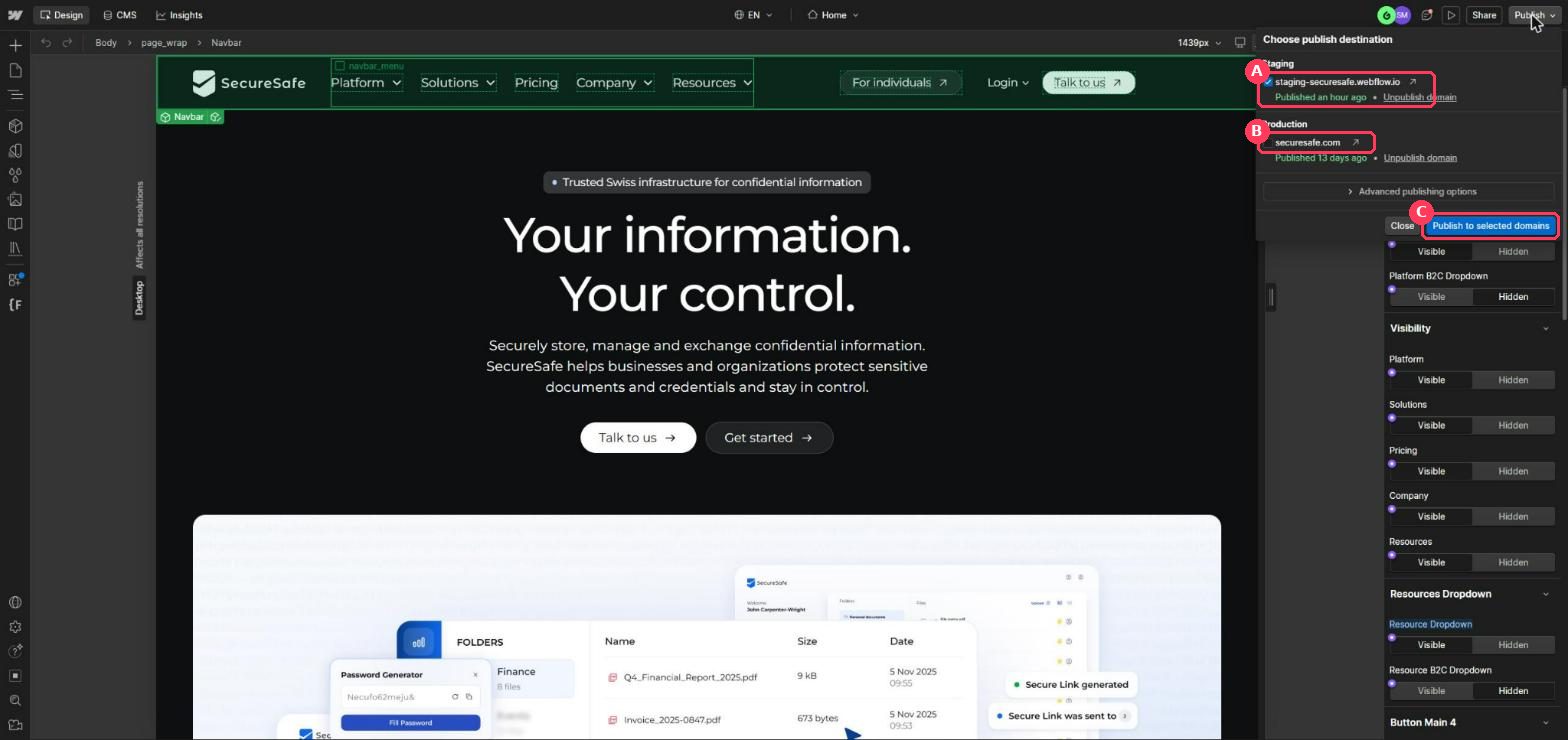
Check it
Open
staging-securesafe.webflow.ioin a new tab, refresh, and look at the footer or open the menu. Add/de,/fror/itto the address to check the other languages.
If something looks off
I don't see a Text or Title field
You are one level too far out. Double-click the link again until the green badge at the top shows the inner name (for example Navbar / Dropdown / Platform), then click the link once.
My change shows in the wrong language
Check the language at the top of the Designer before typing. Press Ctrl + Z (Cmd + Z on Mac) to undo, switch language, and type it again.
The green bar says it will change many pages
That is normal for the navbar and footer. They are meant to be the same everywhere.
The live site still shows the old text
Make sure you published (Part 4) and hard refresh the page. Staging and securesafe.com are separate, so changes only reach the domain you ticked.